I tried turning a simple script into a video… and it was done in minutes. No filming. No editing. No stress. That’s when I realized how much video creation is changing.
But here’s the catch—not every AI tool gets it right. Some feel robotic. Some lack control. So where does Synthesia stand? Is it actually useful or just another shiny tool?
In this review, I’ll walk you through my real experience, what impressed me, what didn’t, and whether it’s something you should actually use.
SYNTHESIA.IO
Turn simple scripts into professional AI avatar videos in minutes—without filming, editing, or any technical skills required.
Pros:
Cons:
What is Synthesia.io?
Turn simple text into studio-quality videos with AI avatars in minutes—eliminating the need for cameras, actors, and editing, so you can produce polished content faster and at a fraction of traditional video costs.
Scale video creation effortlessly across languages, teams, and use cases—without bottlenecks—so you can communicate, train, and sell with speed, consistency, and global reach.
Who This Is Perfect For
Not Ideal For
Why I Love Synthesia?
My First Impressions (Unboxing Synthesia)
The first thing I noticed? It just feels easy.
No clutter. No confusion. No “where do I click?” moment. Everything is laid out in a way that actually makes sense—even if you’re using it for the first time.
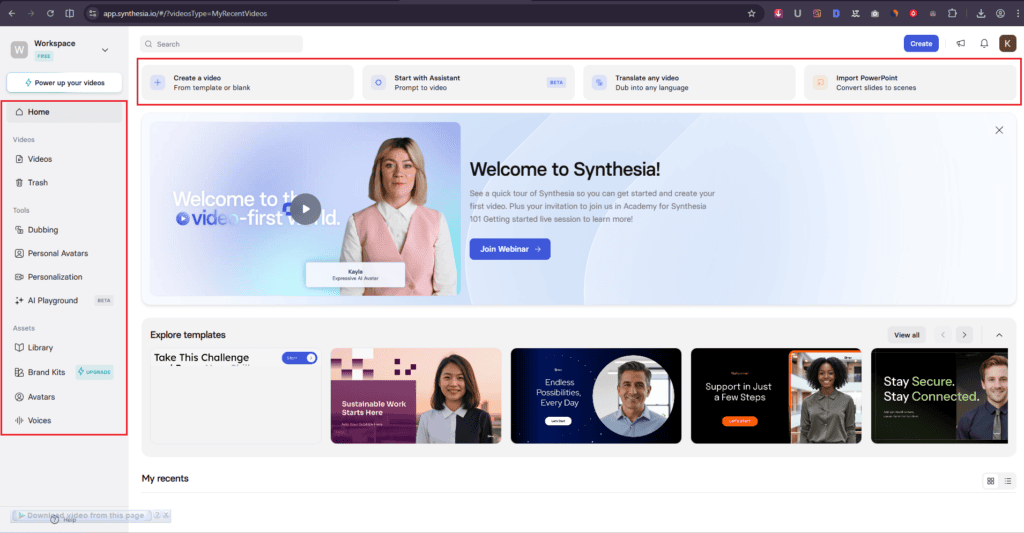
Right at the top, you’ll see the core actions you came for:
- Create a video
- Translate a video
- Import PowerPoint
No digging around. No wasted time. Just start.
Templates that actually save you time
Scroll down a bit, and you’ll find ready-to-use templates.
These aren’t just filler—they’re genuinely helpful when you want to move fast without starting from scratch. It’s one of those small things that quietly boosts productivity.
At the bottom, your recent projects are neatly displayed.
This might sound basic, but it matters. You can jump back into your work instantly without hunting through menus.
On the left side, there’s a clean sidebar with everything you need:
- Home
- Navigation menu
- Assets
The Assets section is especially useful—it gives you quick access to all the tools without breaking your flow.
Most tools overcomplicate things. This one doesn’t.
The layout feels intentional. It helps you focus on creating instead of figuring things out—and that’s a bigger deal than it sounds.
Synthesia Features (Deep Dive)
Create a Video
Templates do most of the heavy lifting
Once you click “Create a Video,” a pop-up opens—and this is where things get interesting.
You’re immediately shown a collection of pre-made templates. And honestly, this is where Synthesia makes life easier.
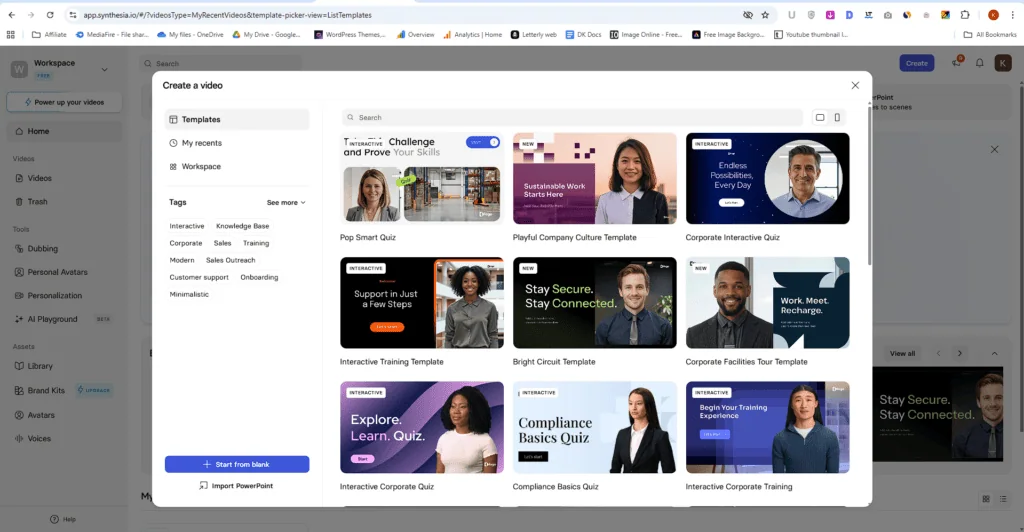
These aren’t empty layouts. They already come with:
- Avatars
- Backgrounds
- Text
- Media
- Design elements
So instead of building everything from scratch, you’re just tweaking what’s already there. Pick a template you like, swap out what you need, and you’re already halfway done.
It feels less like “creating” and more like “finishing.”
Not a fan of templates? No problem.
If you prefer starting fresh, there’s a “Start from Blank” option. Clean slate, total control.
Already have a presentation ready? Even better. You can import your PowerPoint and turn it into a video without rebuilding everything.
Both options are neatly placed at the bottom left—easy to find, no hunting around.
What I like here is the flexibility.
You can go fast with templates or go custom with a blank canvas or reuse what you’ve already made.
Click “Start from Blank,” and you’re taken straight into the editing wizard.
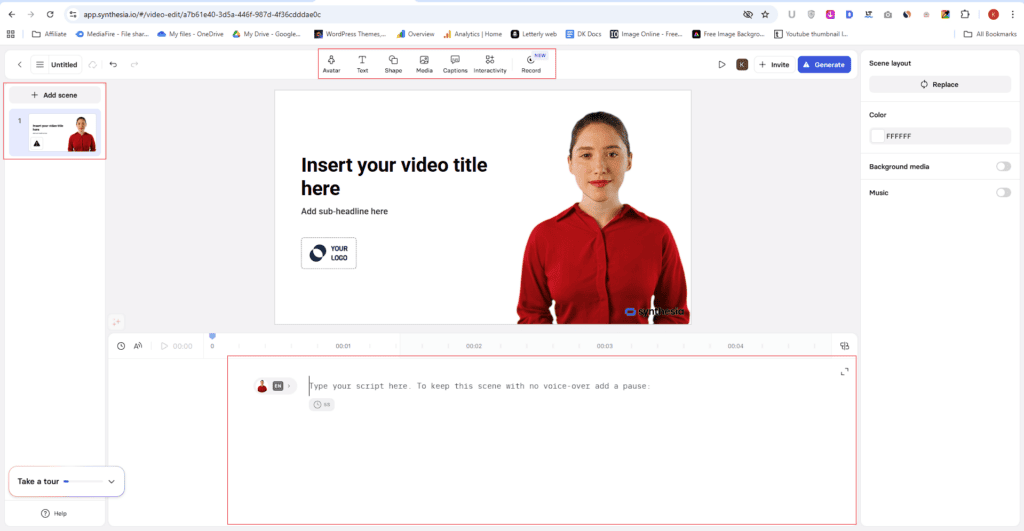
At the center, there’s a live preview of your video. This is your main stage—whatever you build, you see it instantly. No guessing.
Right above that preview, you’ll find all the core elements you can add. And honestly, everything you need is right there.
Everything you need, one click away
You can build your entire video from these options alone:
- Avatar – Add or swap avatars anytime
- Text – Titles, subtitles, body text, captions
- Shapes – Simple design elements to make things look polished
- Media – Upload your own… or skip the hassle
Here’s where it gets interesting. Instead of searching and uploading files manually, you can pull content directly from built-in libraries like Pexels, Giphy, Icons8, and Brandfetch.
Even better, you can generate AI visuals using models like VEO 3.1, VEO 3.1 Fast, or SORA 2 – all without leaving the editor.
It saves more time than you’d expect.
Captions and interactivity? Already handled
Adding captions is simple. Pick a preset, and it syncs automatically with the avatar’s voice. No manual timing.
You can also make your videos interactive:
- Buttons (CTAs)
- Branching paths
- Quizzes (single or multiple answers)
- Result screens
That’s not something you usually expect in a video tool—but it’s there.
Built-in recording = one less tool to worry about
There’s also a record option.
You can record your screen directly inside Synthesia—or upload a screen recording and turn it into an editable, script-based video.
No switching between tools. That’s a big win.
Editing feels simple, not technical
If you want to remove anything, just click on it and hit delete.
That’s it. No layers panel confusion. No complicated timeline.
For example, don’t want the avatar? Select it → delete → add a new one if needed. Easy.
Below the preview, there’s a dedicated space for your script.
This is what your avatar speaks. Once you paste it in, everything starts to come alive.
On the left sidebar, you can add scenes—think of them as segments where you can change visuals, avatars, or text without touching the rest of the video.
On the right sidebar, you control the finishing touches:
- Background color
- Background music
Once everything looks good—script added, visuals in place—just hit Generate.
And that’s it.
Your script turns into a complete AI avatar video… with voice, visuals, and structure—all stitched together automatically.
It genuinely feels like giving life to your words.
Avatar Realism Test: This Actually Surprised Me
To test things properly, I fed in a simple script and let Synthesia do its thing.
What came out… honestly caught me off guard.
The avatar didn’t just “read” the script—it felt like it was delivering it. The facial expressions, slight head movements, and timing all came together in a way that felt surprisingly human.
Not perfect, but definitely beyond what I expected.
Now, here’s the important part.
What you’re seeing in the result is a public avatar—not a custom one. Synthesia only unlocks custom avatars on paid plans, so this is basically the “entry-level” experience.
And even at this level, the realism is solid.
No question—the avatar quality is one of Synthesia’s strongest points.
Start with Assistant
If you don’t want to build videos manually, Start with AI Assistant (Beta) is where Synthesia really starts to shine.
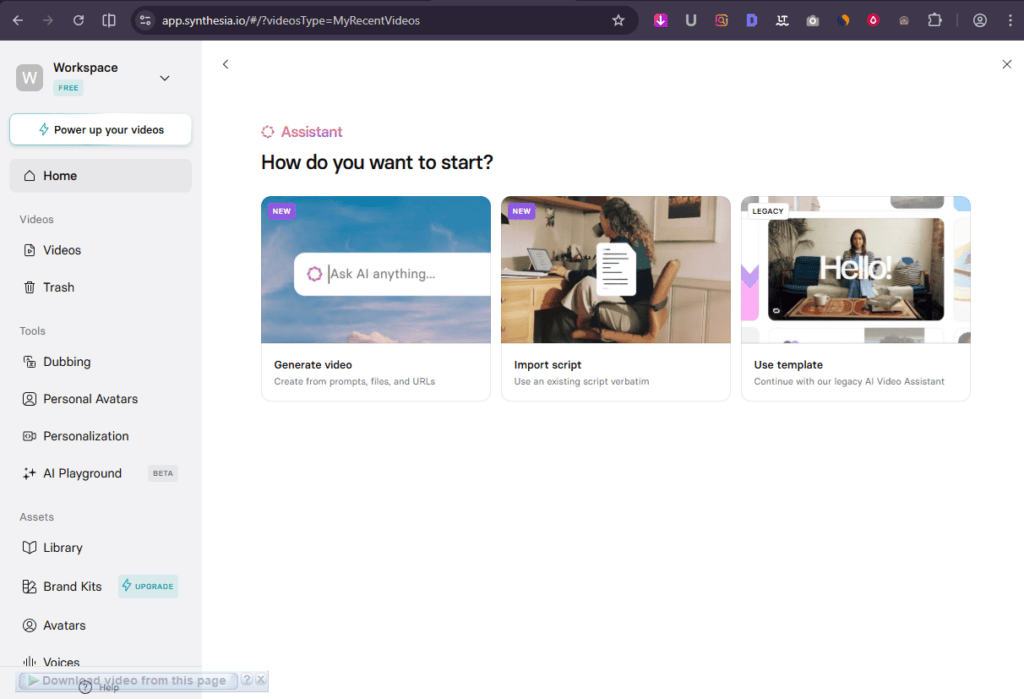
It’s built for one thing: taking your idea and turning it into a ready-to-upload video—with almost zero effort.
When you open it, you’re given three ways to start. Each one fits a different kind of workflow.
1. Generate Video (the fastest way)
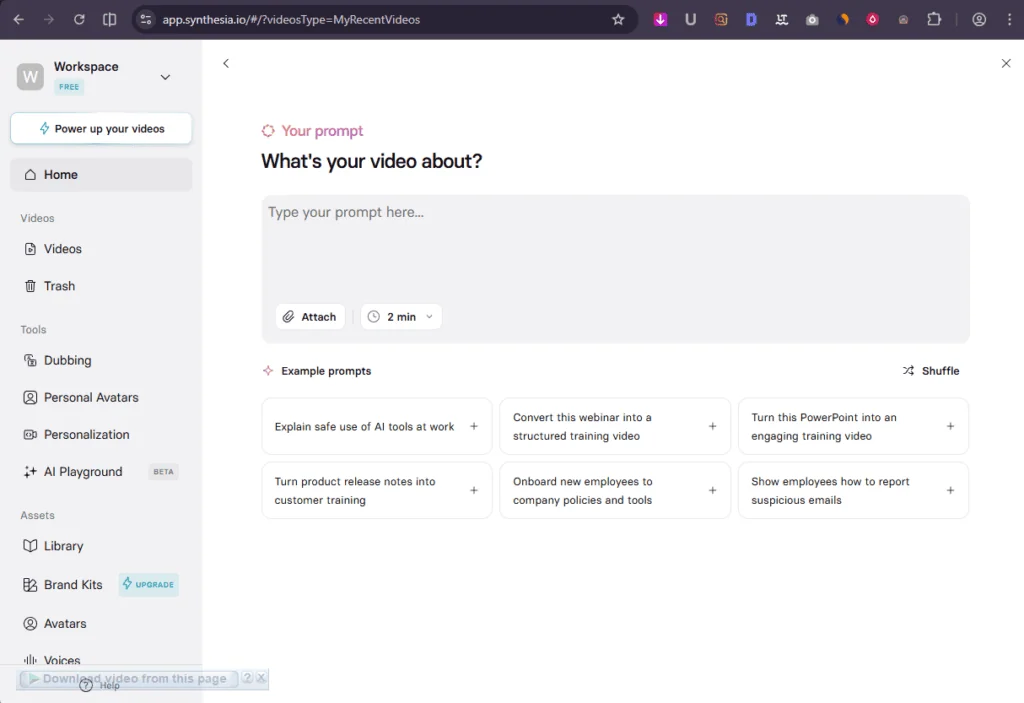
This is the “I just have an idea” option.
You type in a prompt describing your video, attach any media if you want, and choose the duration (up to 5 minutes).
That’s it.
Synthesia handles the rest—
- Writes the script
- Structures the scenes
- Picks a template
- Generates a complete video
And it does all of this in about a minute.
It’s not perfect every time, but for speed? It’s honestly impressive.
2. Import Script (you stay in control)
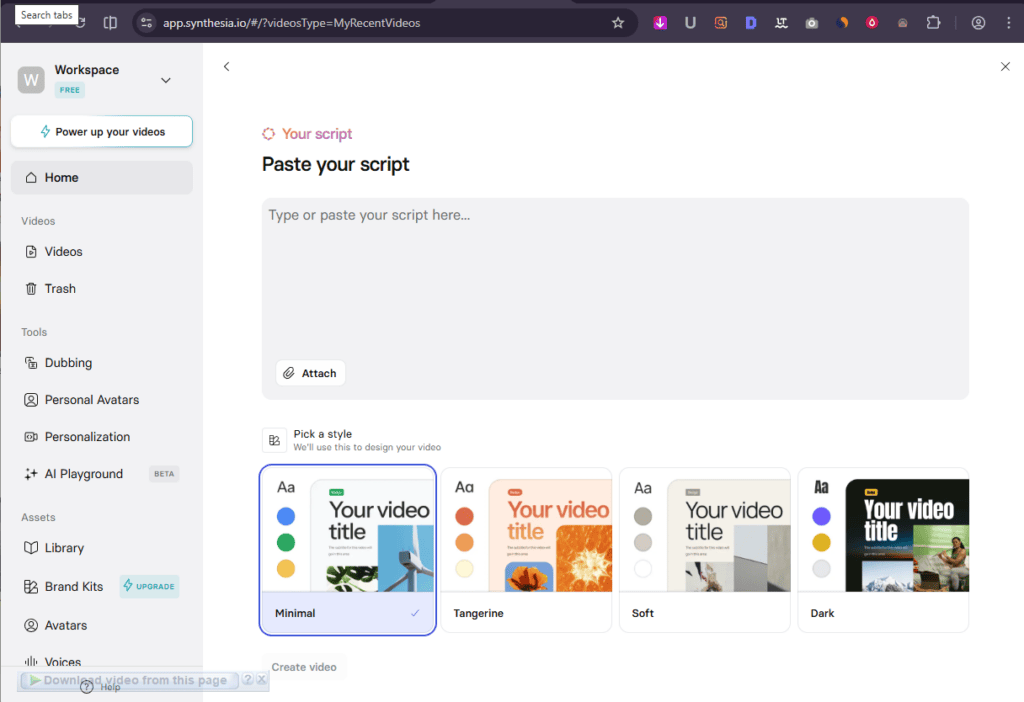
If you already have a script ready, this option feels more intentional.
You upload your script, add media if needed, and let the AI handle the production side.
The result? A clean video with an AI avatar presenting your content—without you worrying about editing, timing, or structure.
It’s a nice middle ground between control and automation.
3. Use Template (full control, no shortcuts)
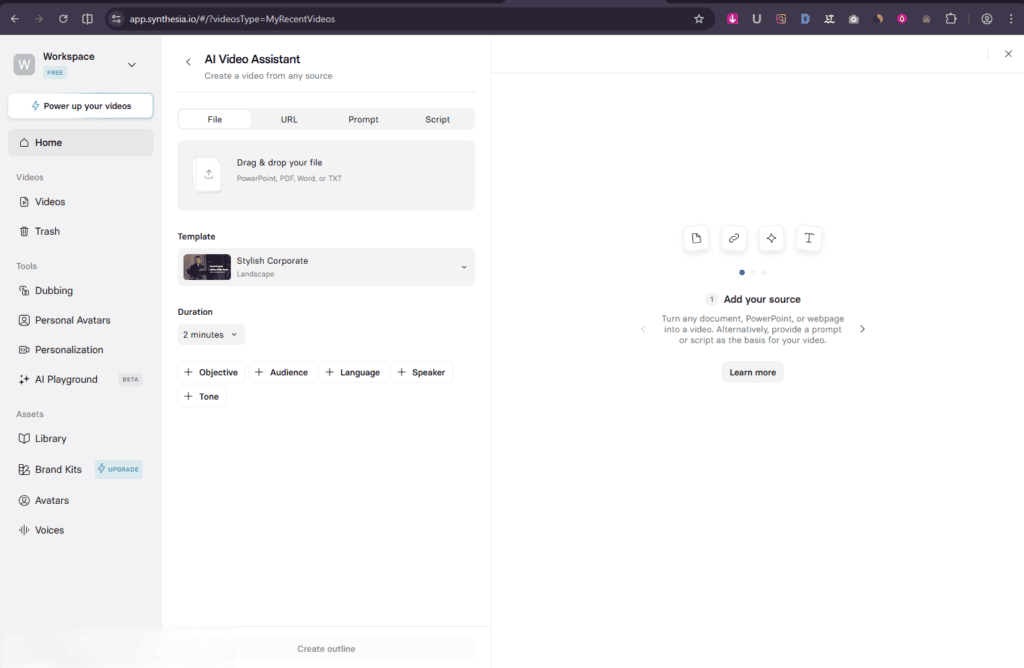
This is for when you want things done your way.
You can upload content in multiple formats—PPT, PDF, Word, plain text—or even drop in a URL or prompt.
Then you:
- Choose a specific template
- Set the duration (30 seconds to 5 minutes)
- Review and confirm the video outline
And only then generate the video.
The difference here? You’re not getting a random template. You’re choosing exactly how your video should look and feel.
Which one should you use?
It really depends on how you like to work:
- Just an idea? → Generate Video
- Script ready? → Import Script
- Want full control? → Use Template
That flexibility is what makes “AI Video Assistant Tool” useful.
You can go from “I have nothing” to a finished video… or stay hands-on and shape everything yourself.
Translate any Video
One feature I was genuinely curious about was “Translate Any Video.”
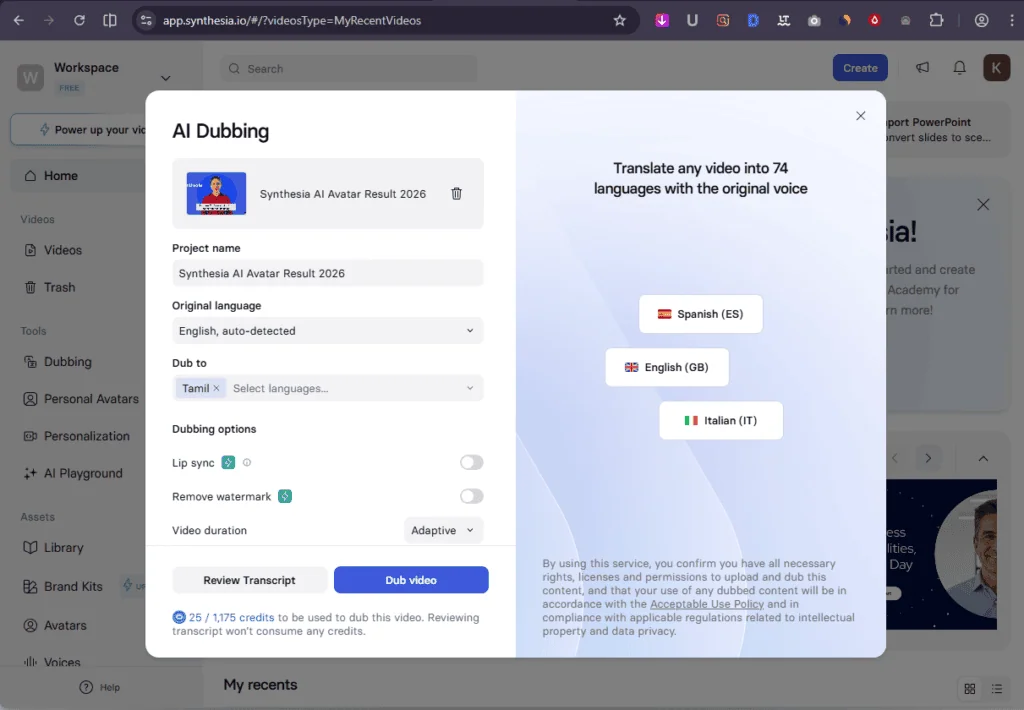
On paper, it sounds simple—you upload a video, choose a language, and Synthesia dubs it for you. It even auto-detects the original language, so there’s nothing complicated to set up.
But the real question for me was… how natural does it actually sound?
Since Tamil is my mother tongue, I decided to test it properly.
I took a video I had already created in Synthesia, uploaded it again, and selected Tamil as the target language.
Within minutes, I had a fully dubbed version ready.
What worked… and what didn’t
The voice output? Surprisingly decent. You can clearly understand it, and it doesn’t feel robotic in a distracting way.
But here’s the catch—
- Lip sync is locked behind the paid plan
- Watermark removal is also paid-only
So in this version, the avatar speaks in Tamil, but the lips don’t match the audio.
If you’re targeting a global audience, this feature has real potential.
Below, you’ll find the Tamil dubbed version I tested.
Watch it if you want a quick way to see how your content sounds in another language- without hiring voice actors or translators.
Import Powerpoint
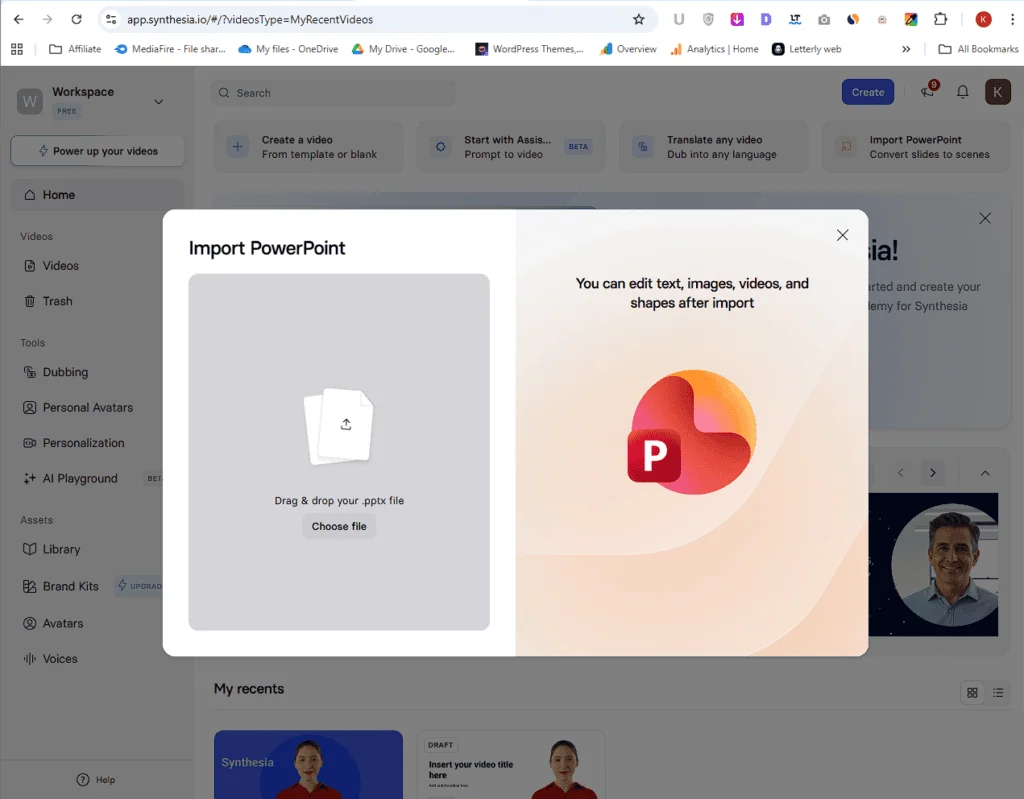
The Import PowerPoint feature is one of those things you don’t realize you need—until you use it.
Just upload your slides, and Synthesia converts them into video scenes. From there, you can still edit everything—text, images, videos, shapes.
And the best part? It adds an AI avatar to explain your slides for you.
So instead of a static presentation, you get a self-explaining video. Huge difference.
Assets
Library:
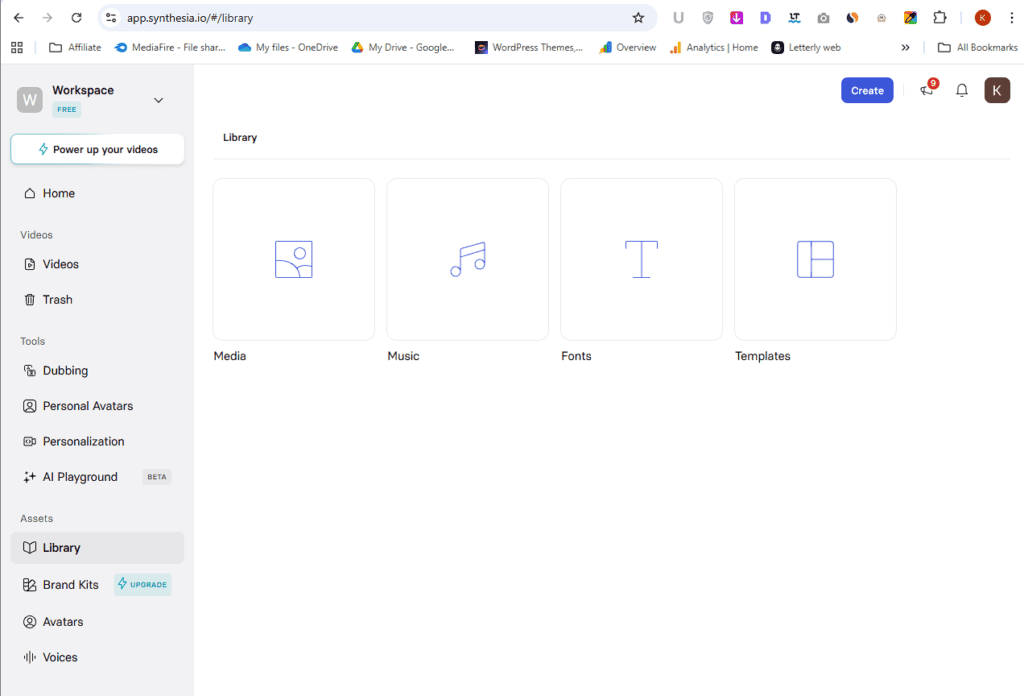
Under Library, you can store all your assets—
- Media files
- Music
- Fonts
- Templates
If you create a layout you like, you can even save it as a custom template and reuse it across projects.
Small feature, but it saves a ton of repetitive work.
Brand Kit:
The Brand Kit lets you lock in your visual identity—colors, fonts, text styles—and apply it instantly to any video.
It’s super useful if you’re creating content regularly and want everything to look consistent.
But here’s the catch: this feature is only available on the Enterprise plan.
So if you’re on Starter or Creator plan, you won’t have access to it. Something to keep in mind.
Avatars:
You’re not limited to public avatars.
Synthesia lets you create a custom avatar—basically a digital version of yourself—by recording your own video.
Once it’s set up, you don’t need to be on camera anymore.
Voice:
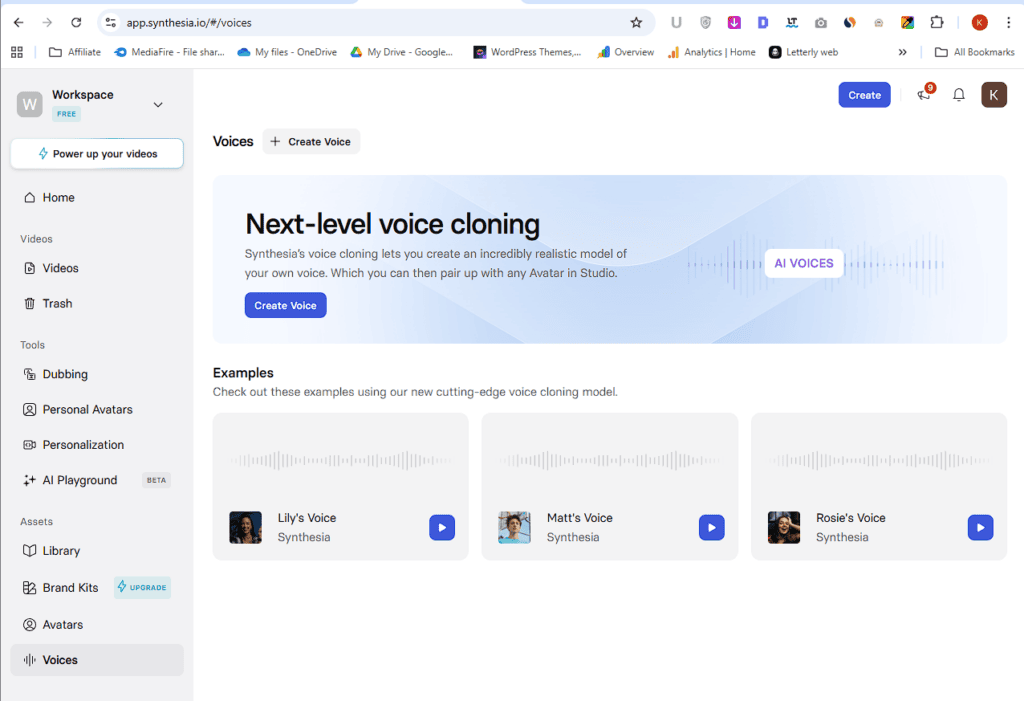
This is where it gets interesting.
You can clone your own voice and pair it with any avatar—including your digital twin.
So instead of recording voiceovers every time, your AI version handles it for you.
No camera.
No mic setup.
No retakes.
Just your voice, your presence… running in the background whenever you need it.
Why this matters more than it sounds
Individually, these features are useful.
But together? They remove a lot of the friction in video creation—recording, editing, redoing things again and again.
You set things up once… and then just focus on the content.
Synthesia Pros and Cons
What I Liked (Pros)
What Could be improved (Cons)
Synthesia Pricing & Plans (2026)
If you’re trying to understand Synthesia pricing, don’t just look at the monthly cost.
👉 The real difference comes down to video minutes, avatars, and features unlocked.
Here’s a simple breakdown so you don’t get confused.
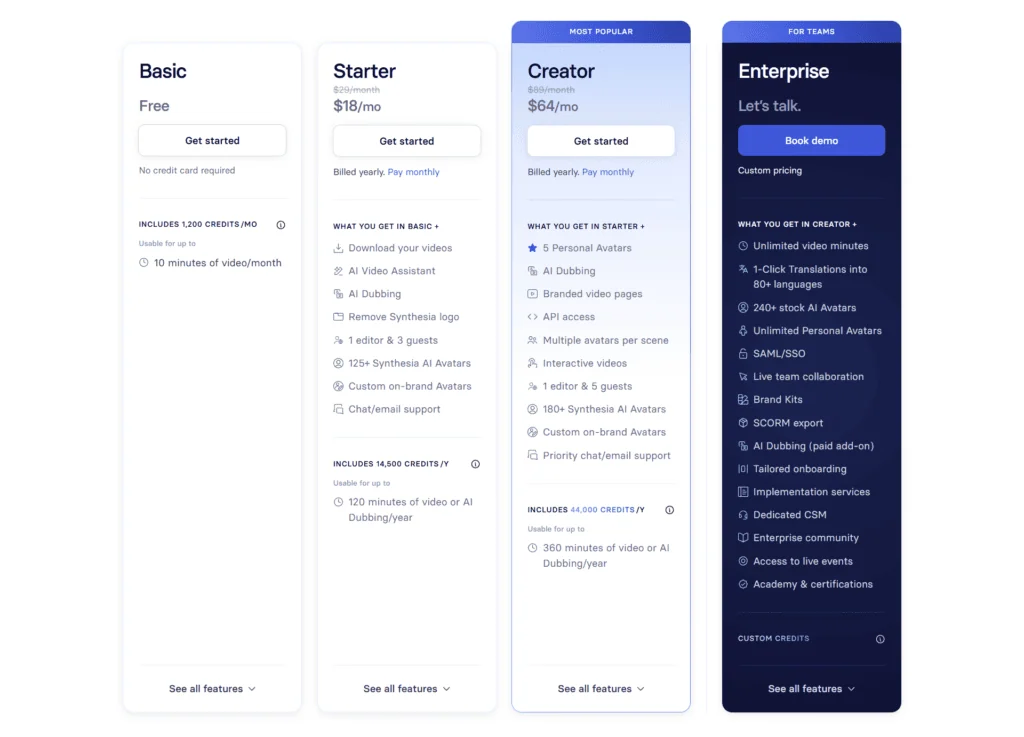
1. Free Plan (Good for testing)
- $0/month
- –10 video minutes/month
- Limited avatars (around 9)
- Watermark included
👉 Best for: Trying the tool, not real work
2. Starter Plan ($18/month)
- 10 video minutes/month
- 125+ AI avatars + 3 Personal avatars
- Voice Cloning & Video Dubbing to any language
- No watermark
- Download videos
👉 This is where Synthesia becomes usable for real content
3. Creator Plan ($64/month)
- 360 video minutes/month
- 180+ AI avatars + 5 Personal avatars
- Voice Cloning & Video Dubbing to any language
- API access
👉 Built for people creating videos regularly
4. Enterprise Plan (Custom pricing)
- Unlimited video minutes
- Full avatar library
- Brand Kit feature
- Advanced features (SSO, API, translation, team tools)
👉 Designed for companies scaling video production
- Pricing is credit-based (video minutes)
- You don’t get unlimited videos unless you go Enterprise
- Some features (like API, custom avatars) are locked in higher plans
- Costs can increase quickly if you scale content production
Create studio-quality videos with AI avatars instantly eliminating filming costs, saving time and scaling effortlessly
With HeyGen, it’s pretty straightforward.
You pay $24/month (Creator Plan) — and you get unlimited video minutes. No worrying about credits running out.
And it’s not just avatar videos. You also get tools to: Generate B-rolls, Create images, Make product ads
👉 So yeah, it feels more like an all-in-one content toolkit, not just an avatar video tool.
Which Plan Should You Pick?
If you’re serious about using Synthesia:
👉 Creator Plan = Best Value for most people
Why?
- Enough minutes for Long form & short videos
- Access to a large avatar library
- No watermark (this matters for professional use)
For Content Creators & Marketers, this is the sweet spot.
Best Value Synthesia Plan Revealed
Here’s the simplest way to decide:
- Just exploring? → Free plan
- Occasional videos (YouTube, marketing, small projects)? → Starter
- Frequent content (courses, client work, scaling)? → Creator
- Team / business / bulk production? → Enterprise
Synthesia pricing is not complicated… but it can be misleading at first glance.
It’s not about “how much it costs.”
It’s about how many videos you can actually create.
👉 My advice:
Start small (Starter plan), test your workflow, then upgrade only if you truly need more minutes.
That way, you don’t overpay for features you won’t use.
Final Thoughts: Is Synthesia Worth It?
Yes—but only if speed and simplicity matter more than advanced control.
Synthesia is a great fit for creators, marketers, and educators who want to turn scripts into videos quickly without filming or editing. If you’re making training videos, social content, or multilingual content at scale, this tool genuinely saves time and effort.
But if you need deep customization, cinematic editing, or full creative flexibility, this isn’t the right tool. It’s built for efficiency, not creative perfection. Also, key features like branding and unlimited video minutes are locked behind the Enterprise plan, which can be a deal-breaker for many users.
The biggest strength? Fast, no-skill video creation.
The biggest weakness? Important features gated behind higher pricing.
My take: Go for it if you want quick, scalable videos. Consider alternatives if you need full control or lower-cost scaling.
Real User Reviews & Feedback
Trustpilot
Capterra
G2
Positive Stories
Most users come in expecting a basic AI video tool—but end up surprised by how fast and easy it is to turn a simple script into a clean, professional-looking video. It’s not just about saving time; it actually removes the stress of filming, editing, and retakes, which is why so many people stick with it.
negative Stories
But there’s one frustration that keeps coming up—pricing limitations. Users don’t like that key capabilities like branding and higher usage are locked behind expensive plans, making it harder to scale without upgrading. It’s a gap Synthesia really needs to fix if they want long-term users to stay.
FAQs – Discover Answers Readers usually Search
Tools like Synthesia are changing how we create content. What once needed cameras, teams, and hours of editing can now be done in minutes.
That’s powerful—but it also raises a bigger question about creativity, control, and how much we rely on AI. Synthesia proves what’s possible today, even with its limitations. And it’s only going to get better from here.
As AI tools keep evolving, do you think they’ll replace traditional video creation—or just support it?
Synthesia
4.3/5⭐
- Turn text into AI videos
- Create videos without camera
- Generate avatars speaking scripts
🔑Feature:
⚒️Ease of Use:
💰Pricing:
🤝Support: